
Learn how to share your mA.I Health™ app records with others, including providers. Also learn how to move your records between different folders.
This ensures your data is accessible to the right people and organised efficiently for easy management.
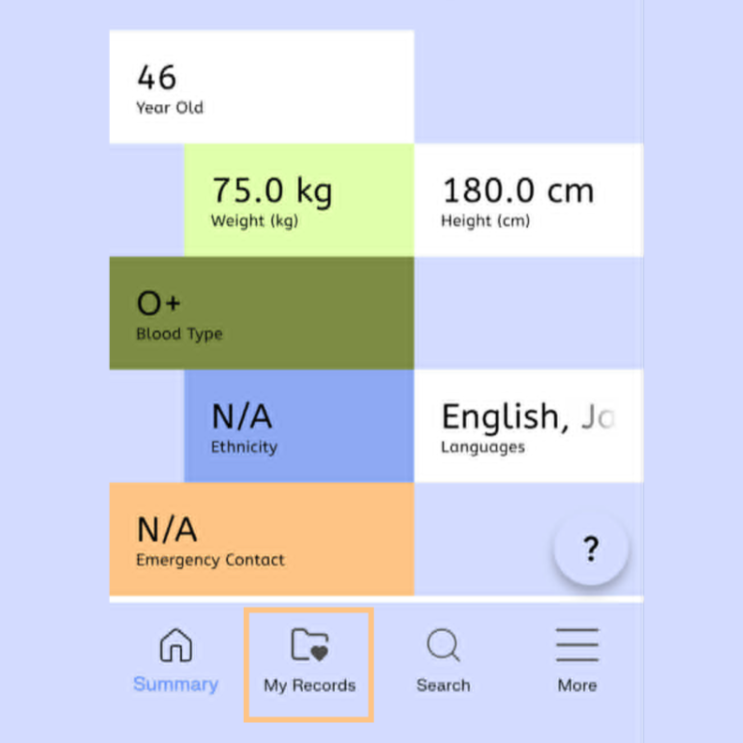
First, click the My Records icon at the bottom of the home screen.
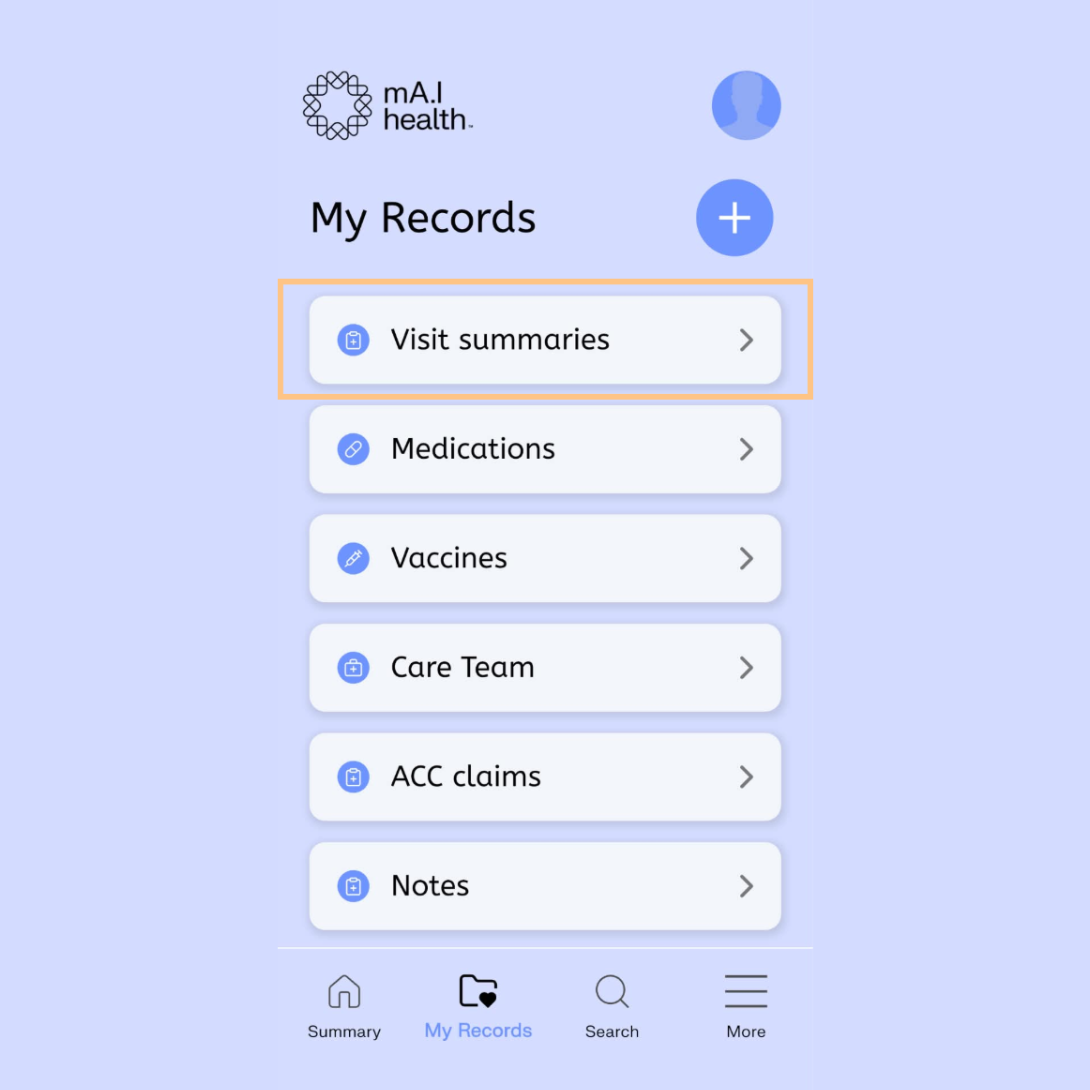
Select Visit Summaries to access your saved records.
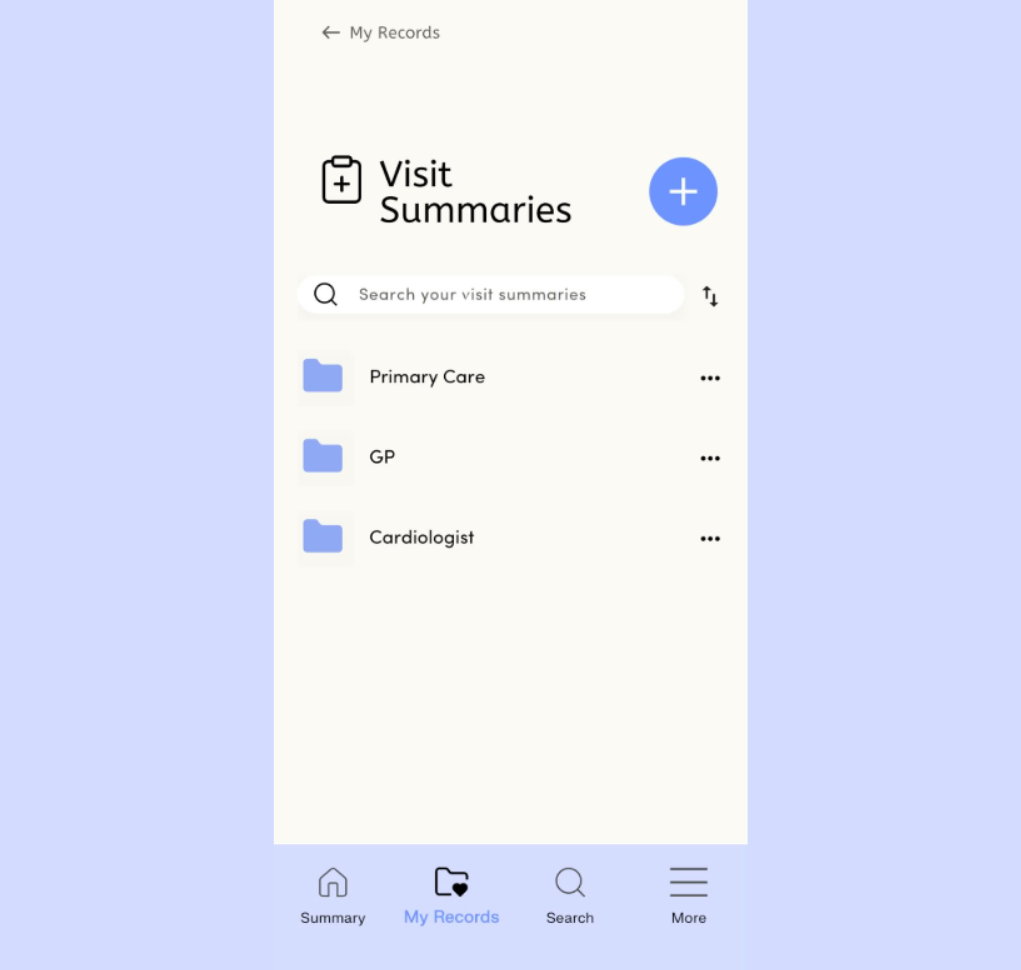
Select the folder containing the record you wish to share.
Alternatively, you could use the search menu at the top to find the record you are looking for.
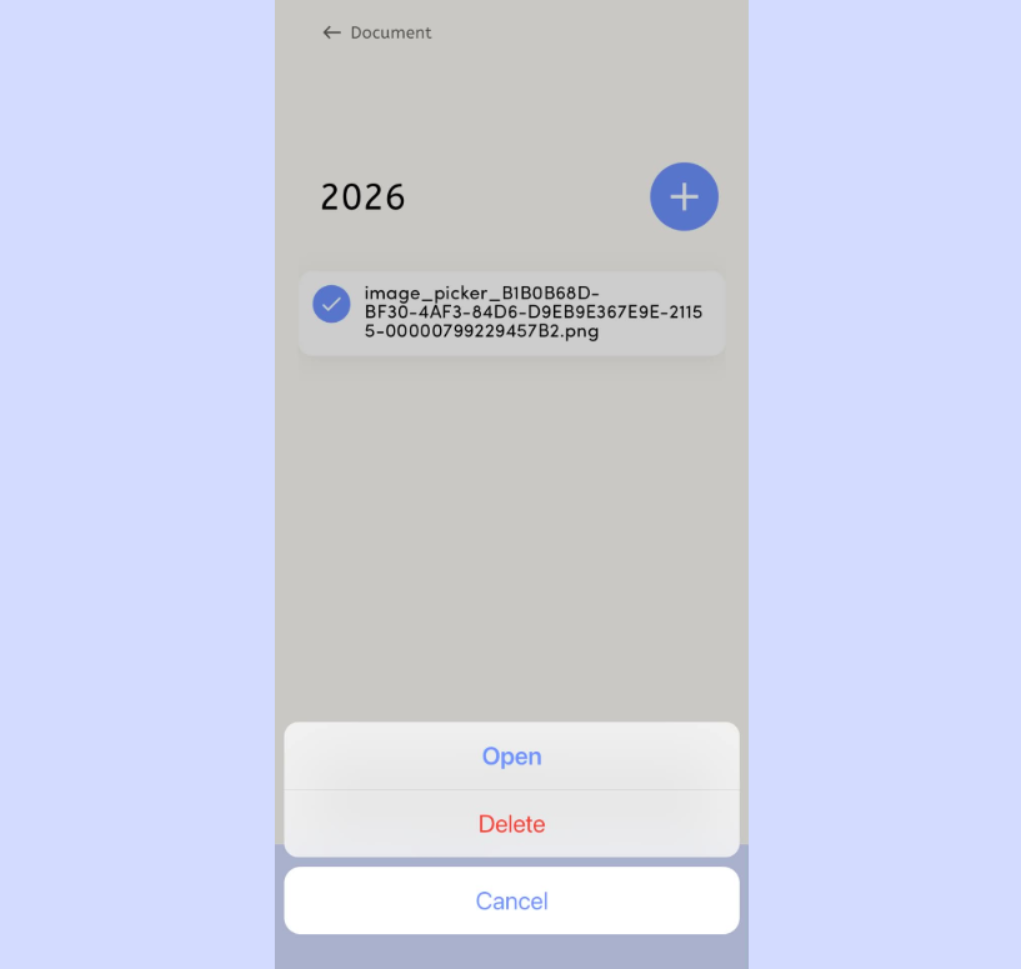
To share a record, click the record you want to share, then select Open to bring up the record.
Then select the Share icon in the top right of the screen and choose your preferred method for sharing the record.
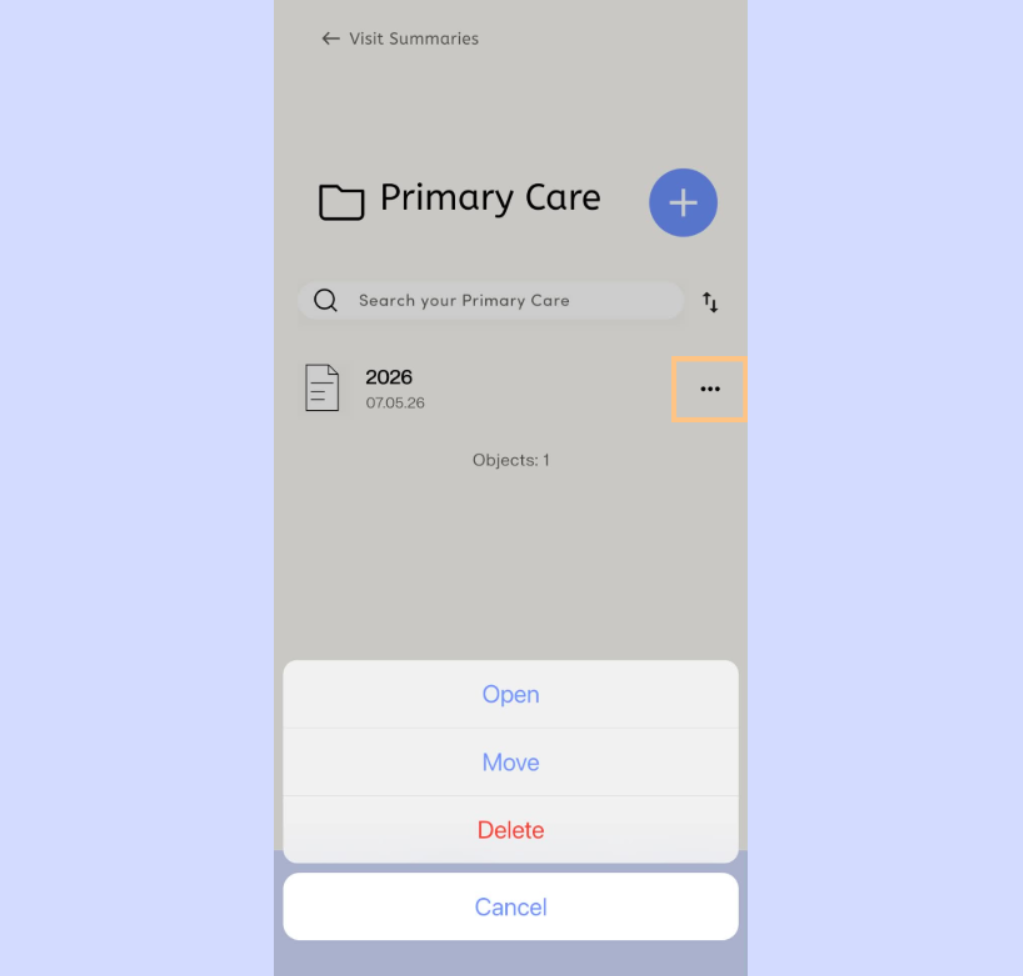
To move records between folders, click the three dots next to the record you want to move.
Then, select the Move button.
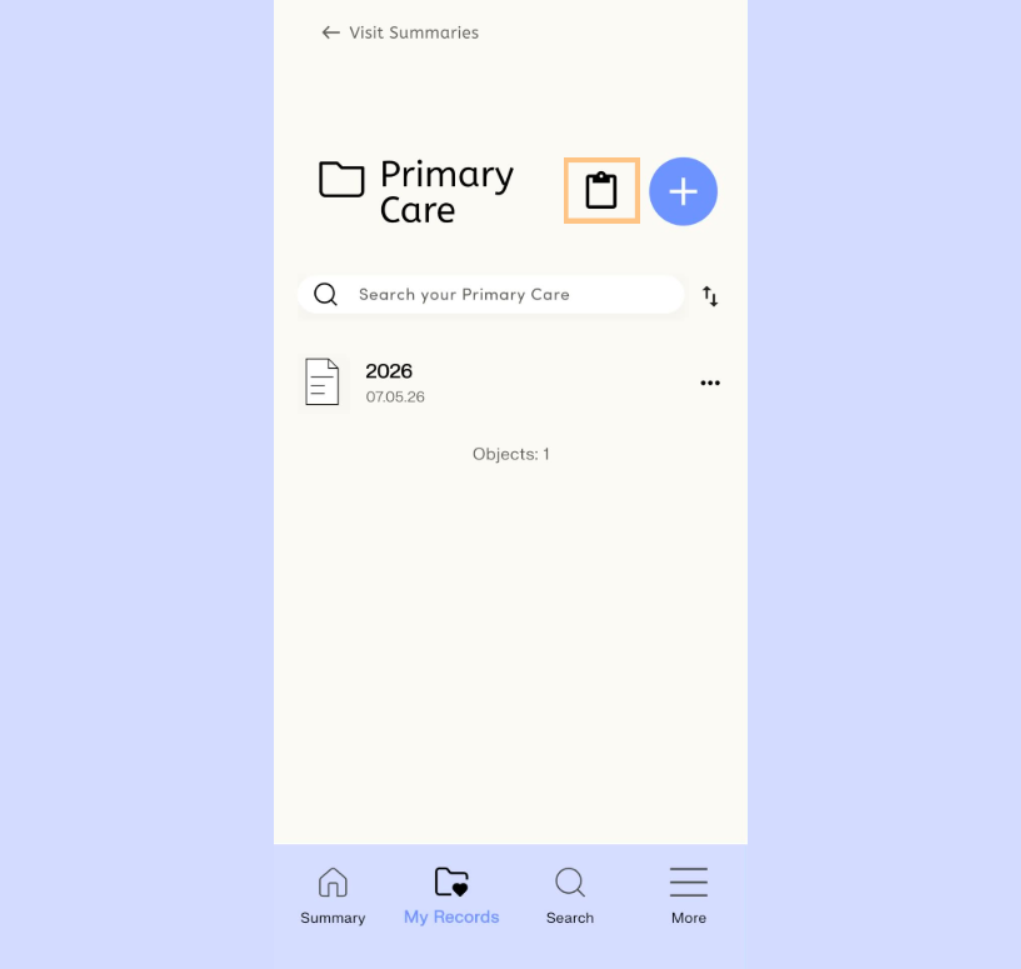
A clipboard icon will now appear next to the name of the folder, letting you know a record has been clipped and can be pasted.
Navigate to the folder where you want to move the record.
When in the appropriate folder, click the clipboard icon to move the record to the selected folder. It may take a few minutes for the file to appear in this folder.