
Manually upload records
Learn how to manually upload your medical records to the mA.I Health™ app.
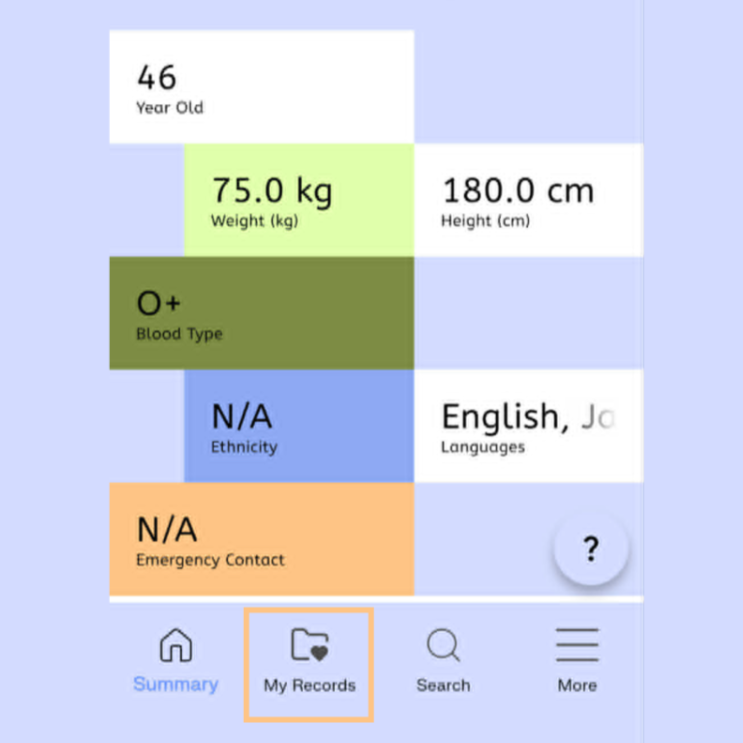
To start, select the My Records icon at bottom of the home screen.
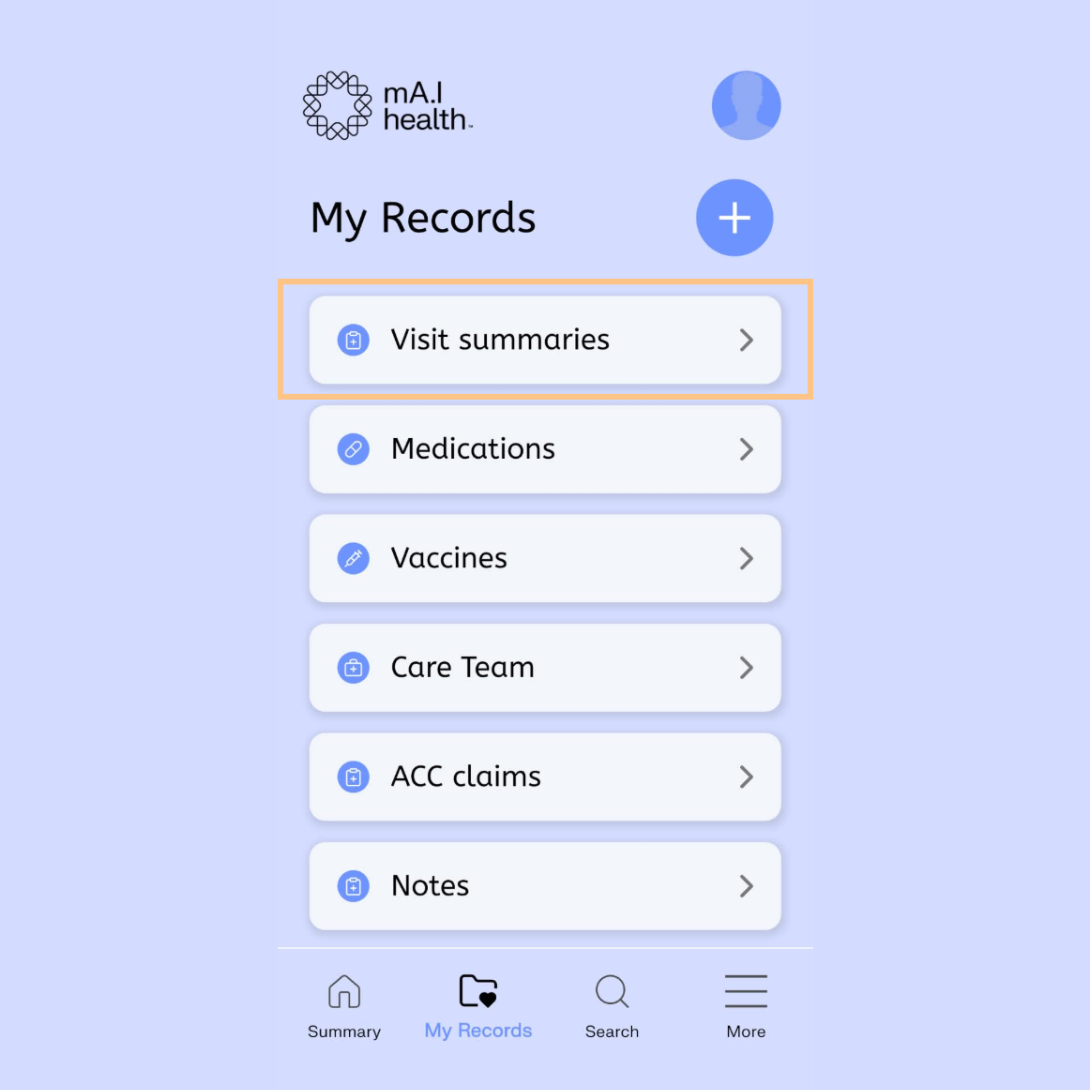
Select the Visit Summaries page.
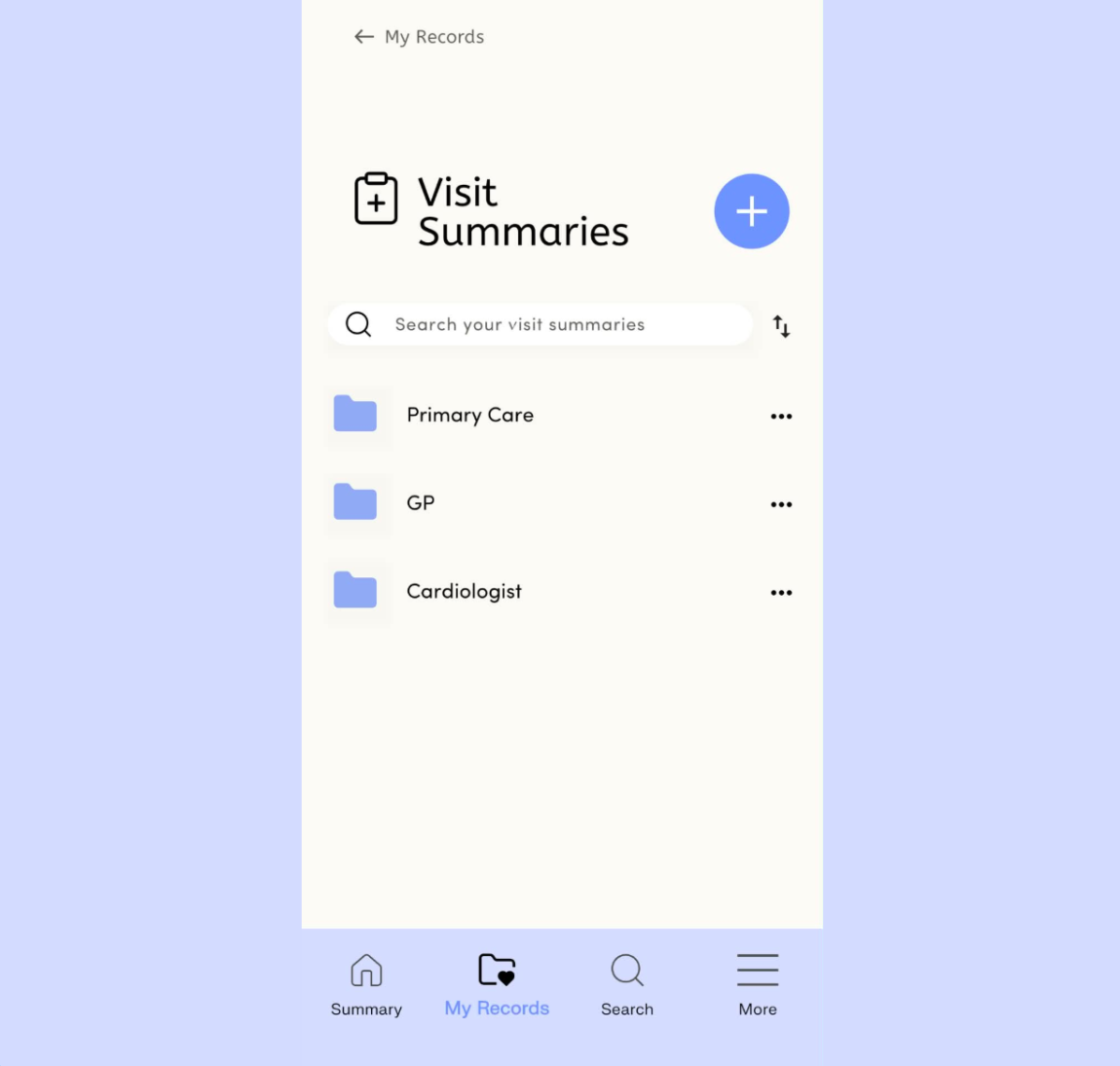
Select or create the relevant speciality folder where you want to store the records.
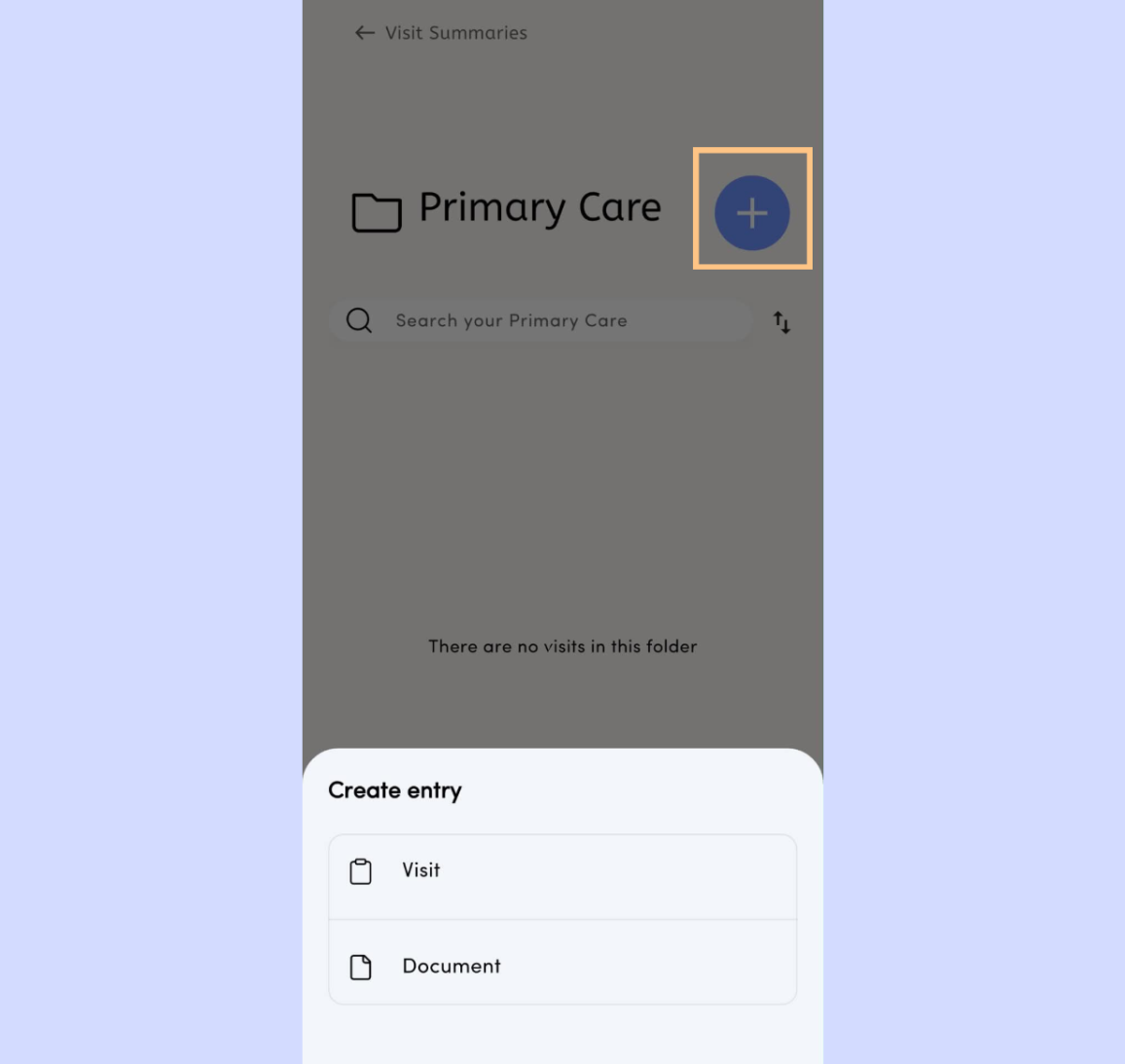
Then select the Plus icon to add a new record.
You can choose whether to save your record as a Document or a Visit. We recommend saving historical files as a group of Documents. New doctor visits going forward can be saved as Visits.
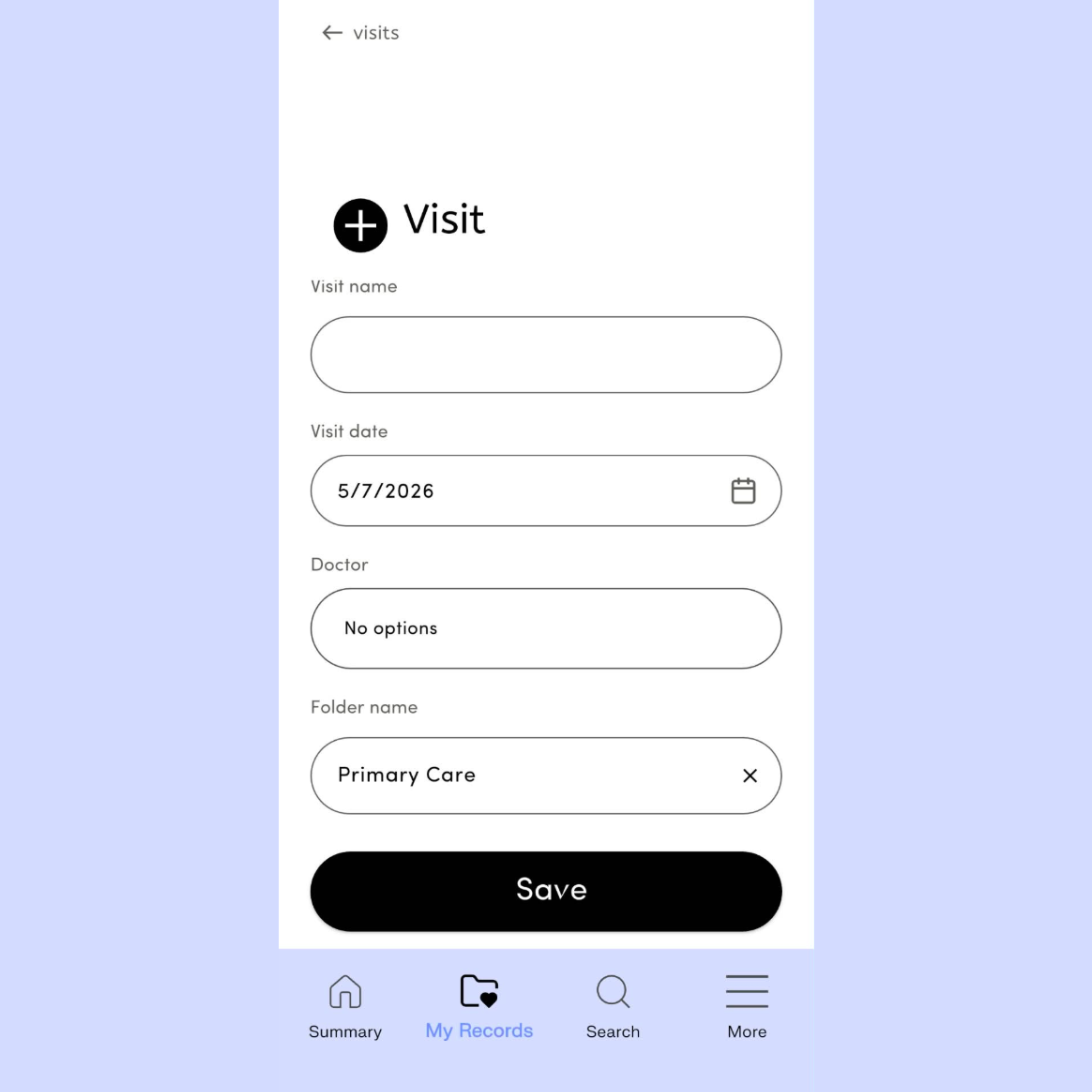
For a Visit entry, follow the onscreen prompts to add the appointment date, doctor's name, and visit type. When finished, select Save.
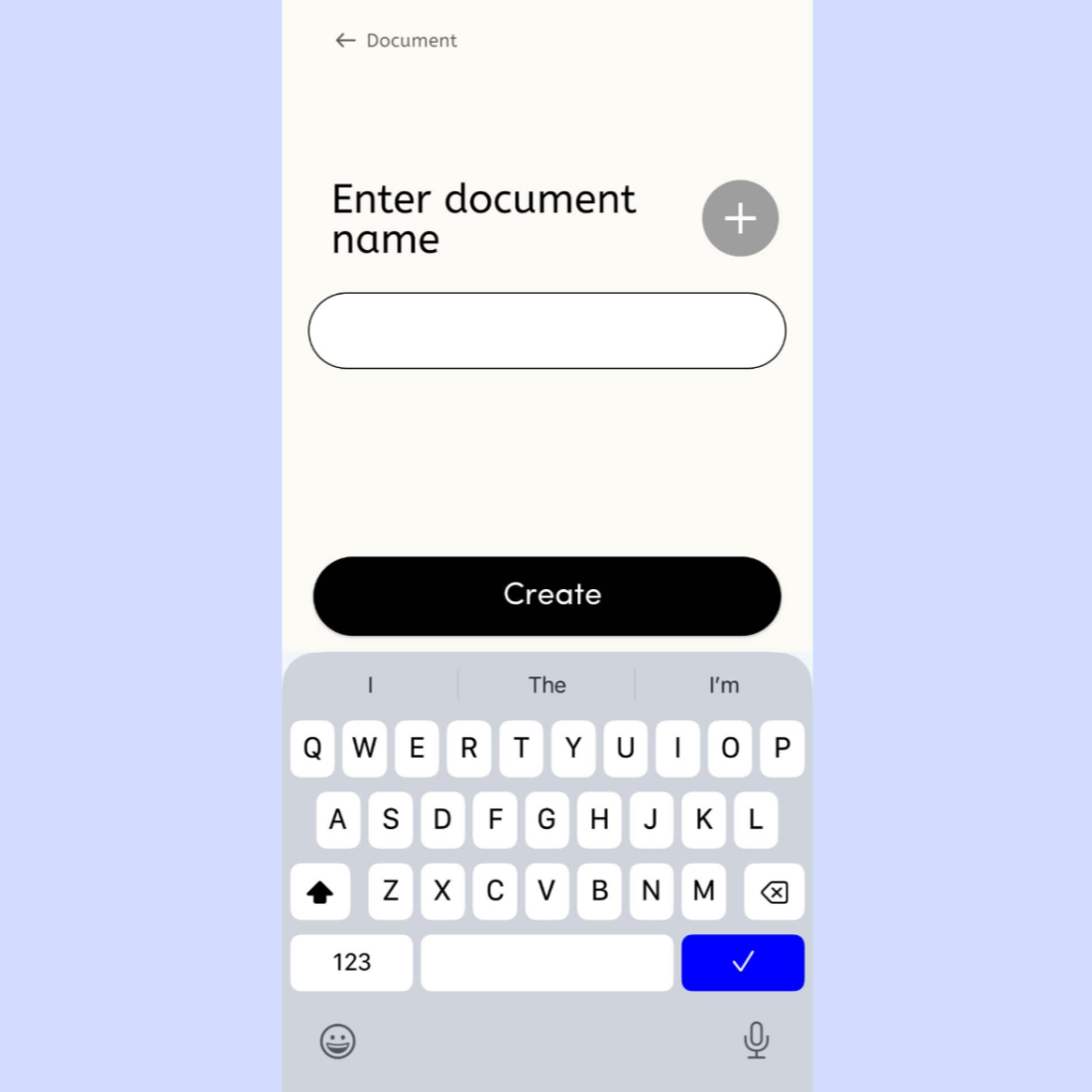
For a Document entry, begin by entering your chosen Document name. When you’ve done so, select the Create button.
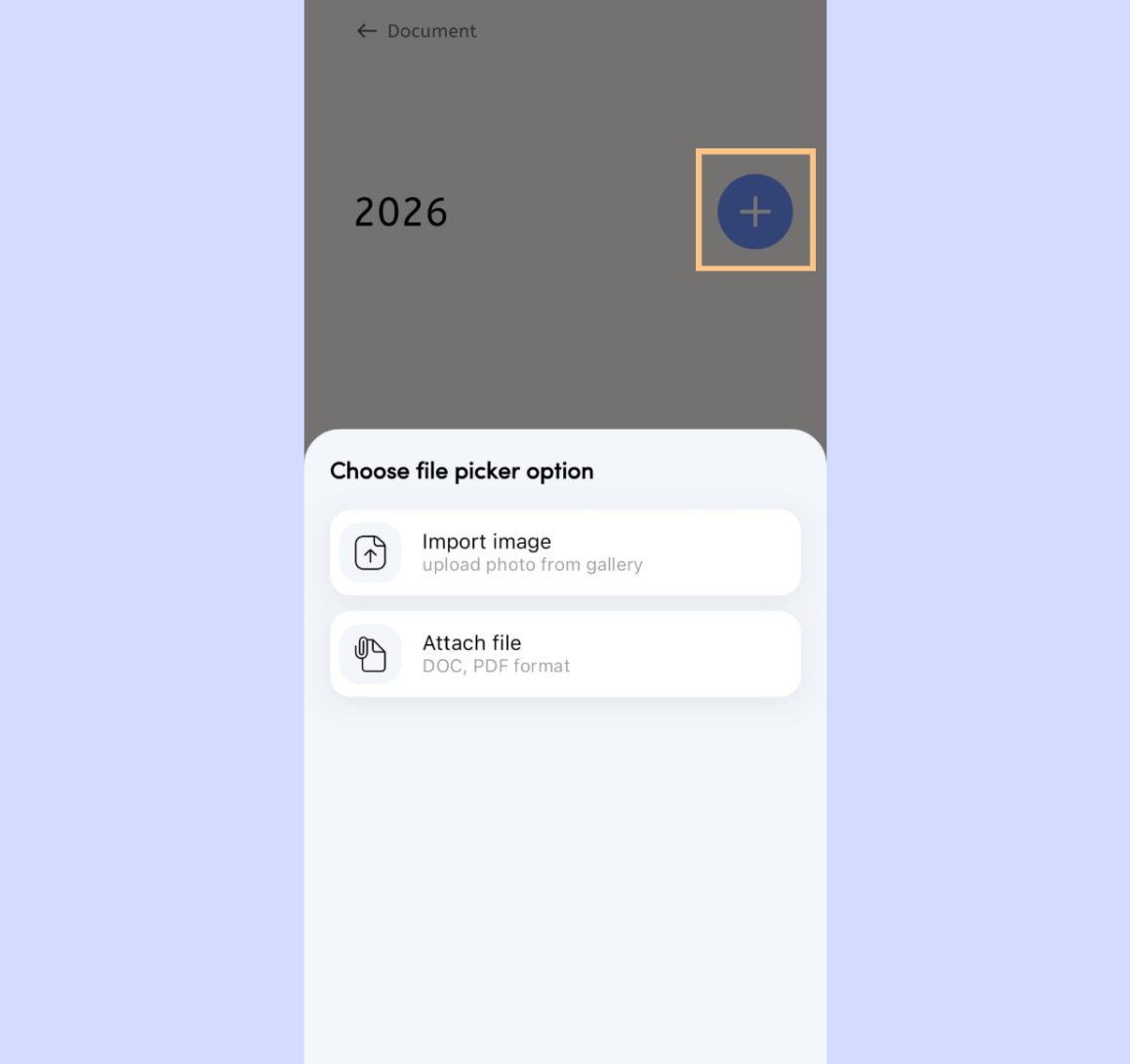
Select the Plus icon to add the record or records. The file can either be uploaded as an image, chosen from your photo gallery, or as a file such as a DOC or PDF. Follow the on screen prompts to choose the record you wish to upload.
Once you have chosen the file you want to upload, select the Save button.
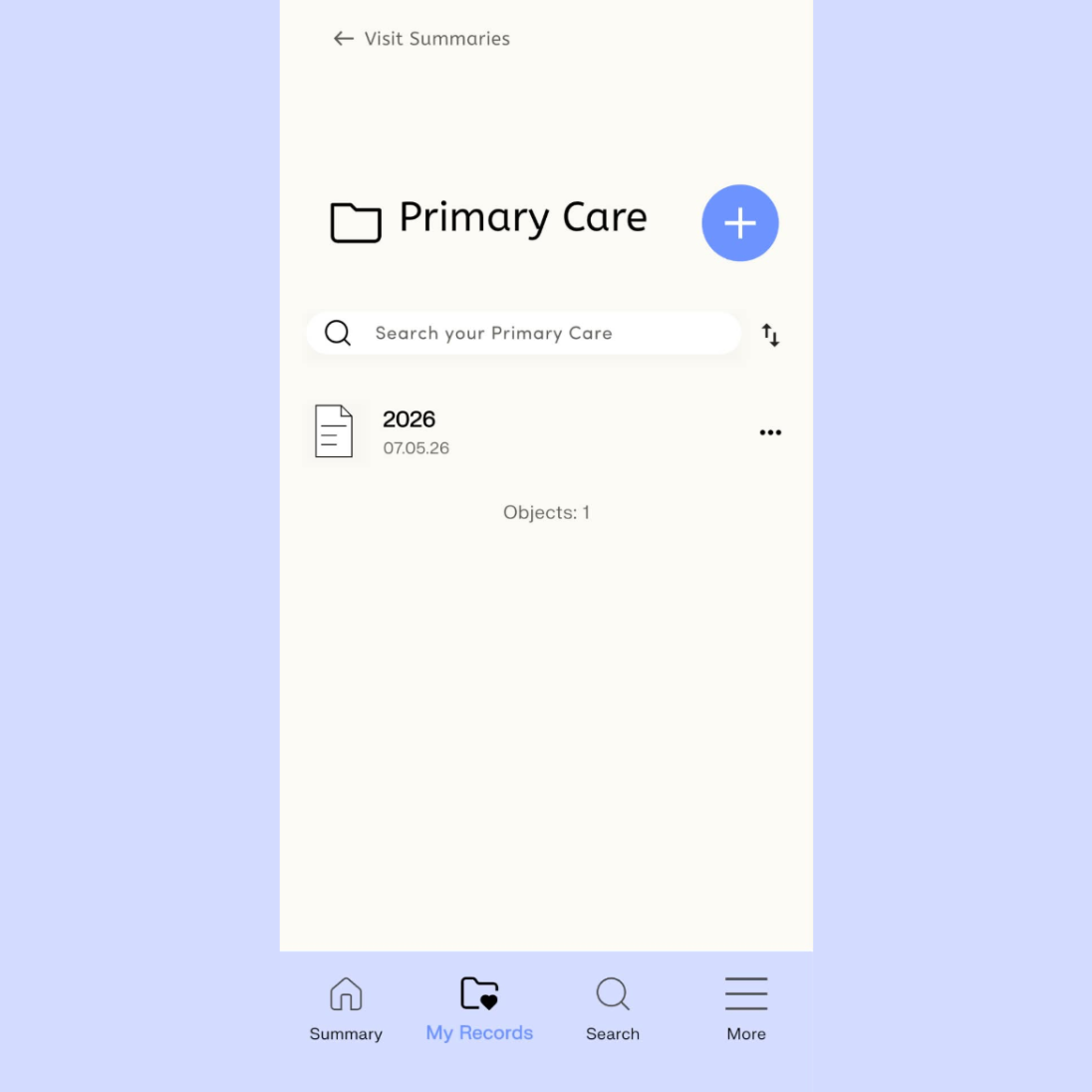
The file upload may take a few minutes. You can continue to use and navigate to other parts of the app while it uploads.
Once your file has been uploaded, you will see it listed under the relevant folder in the Visit Summaries section of the app.