
Setting up your care team and visit folders before uploading records
Learn how to set up your Care Team and Visit Summary folders on the mA.I Health™ app, before you upload your health records.
We recommend setting up your Care Team and Visit Summary folders, before uploading any of your health records, in order to make navigation easier.
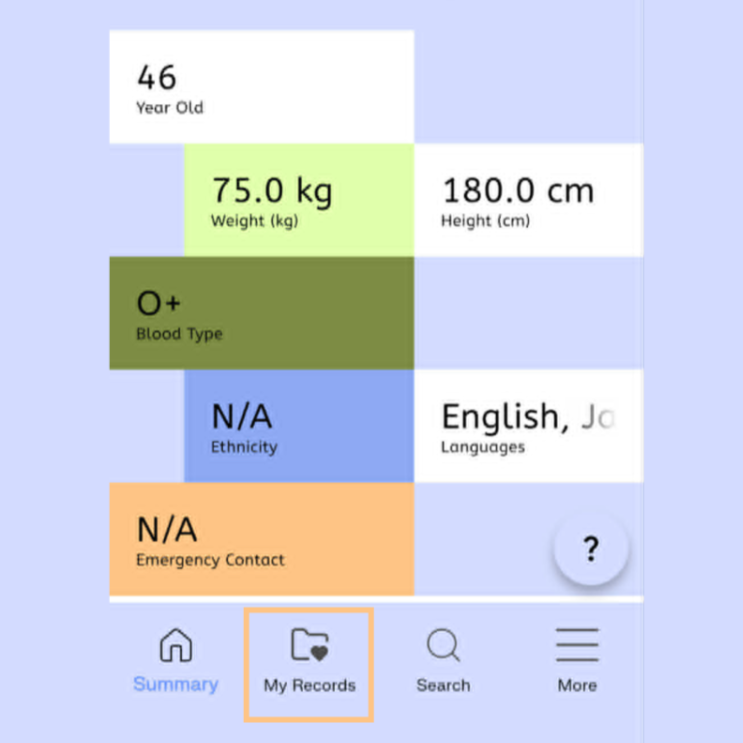
From the main dashboard, select the My Records tab down the bottom of the screen.
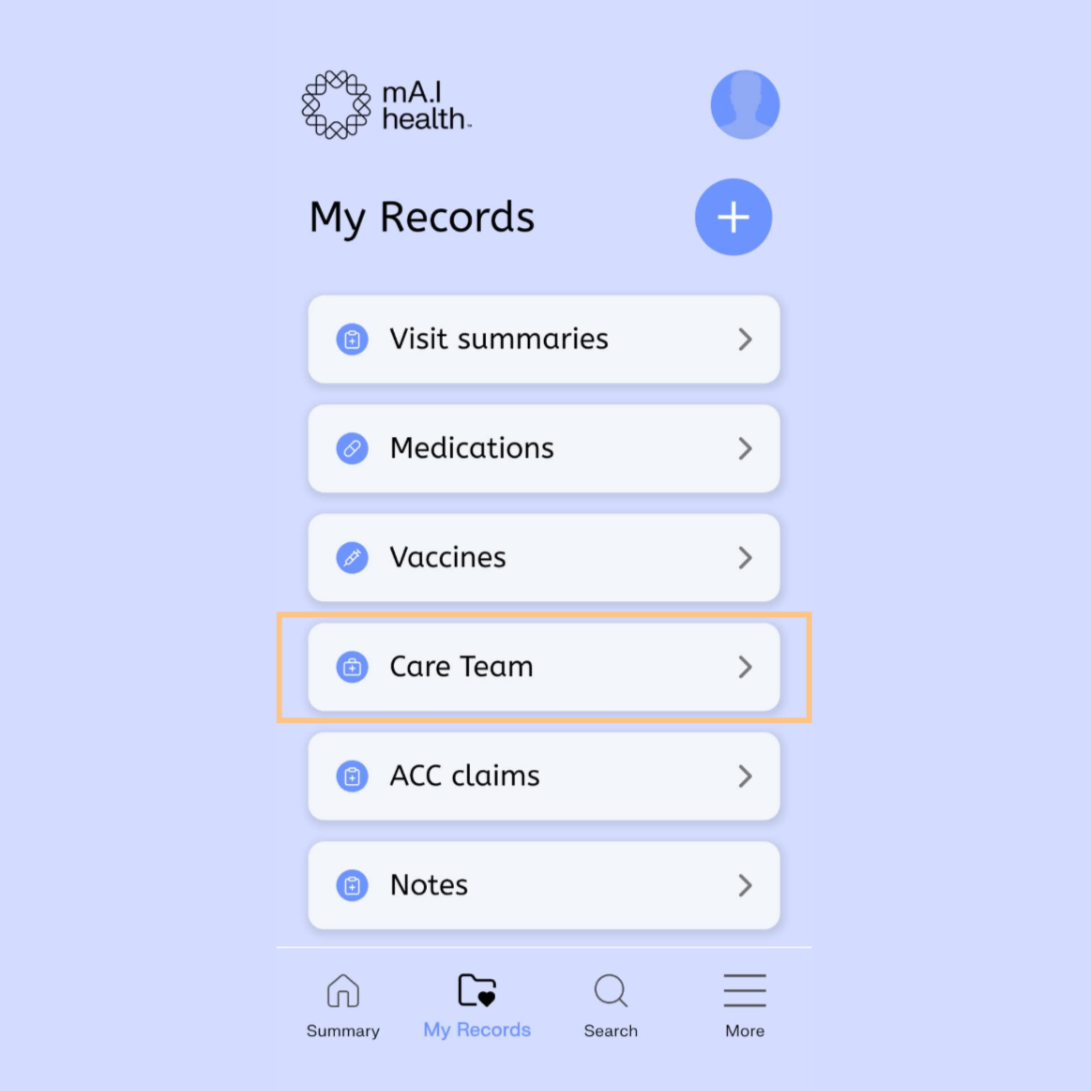
To start, select Care Team.
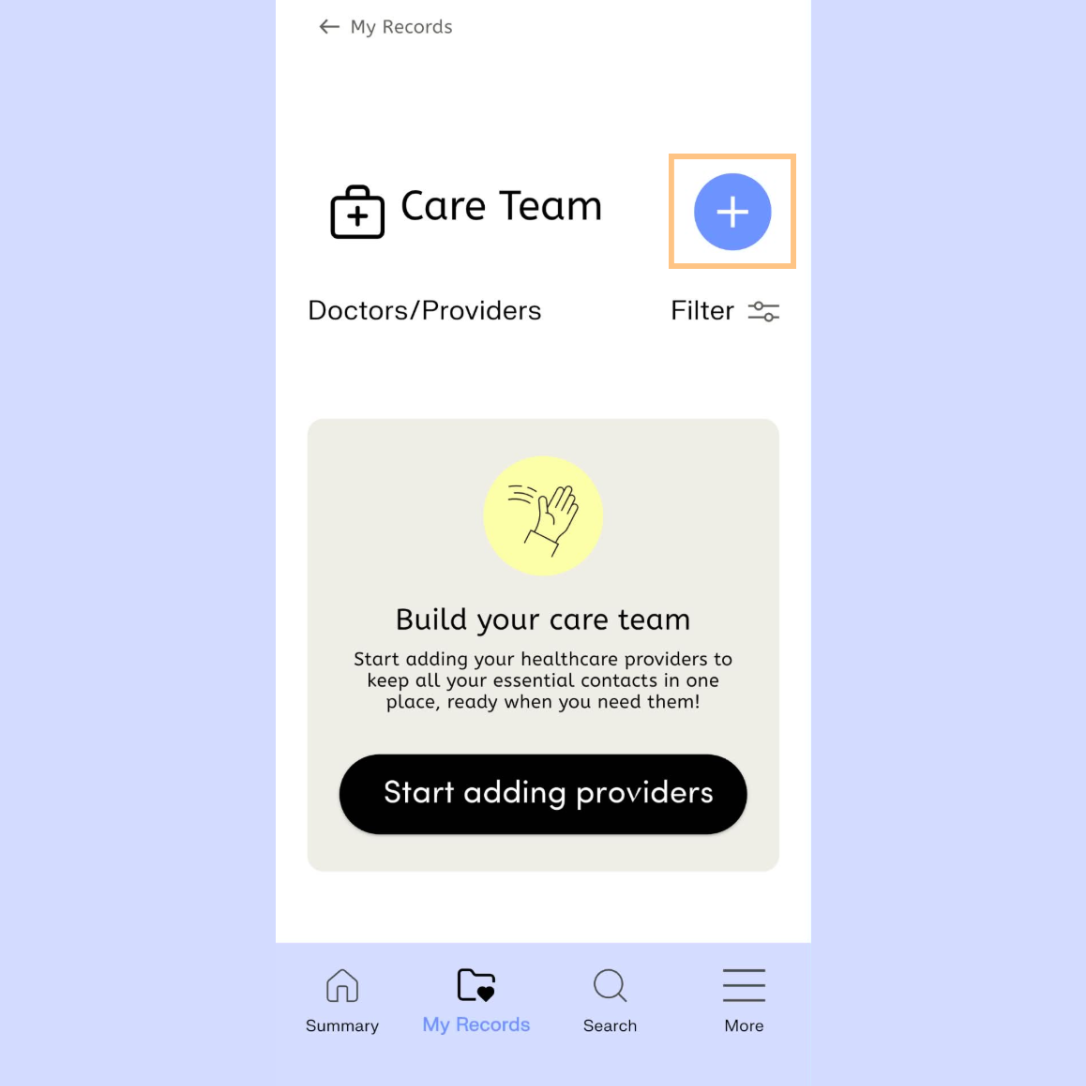
Select the Plus icon in the top right hand corner to create a new Care Team profile.
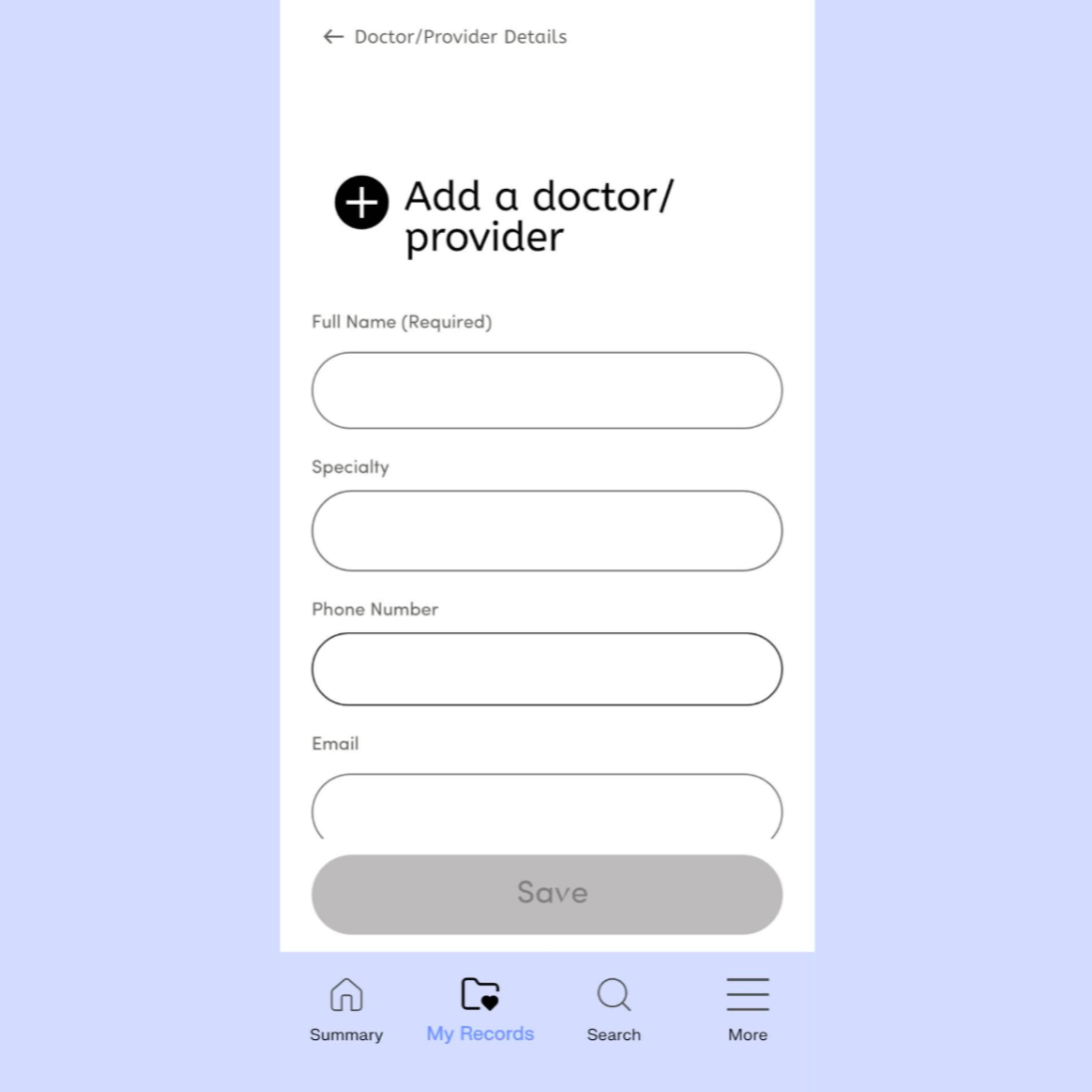
Follow the onscreen prompts to complete the profile information for your doctor or health care provider.
If you don’t have all of the information on hand or you make a mistake, you can come back and edit this information at a later date.
Once finished select the Save button.
Repeat these steps to add additional members of your Care Team, or to add additional members in the future.
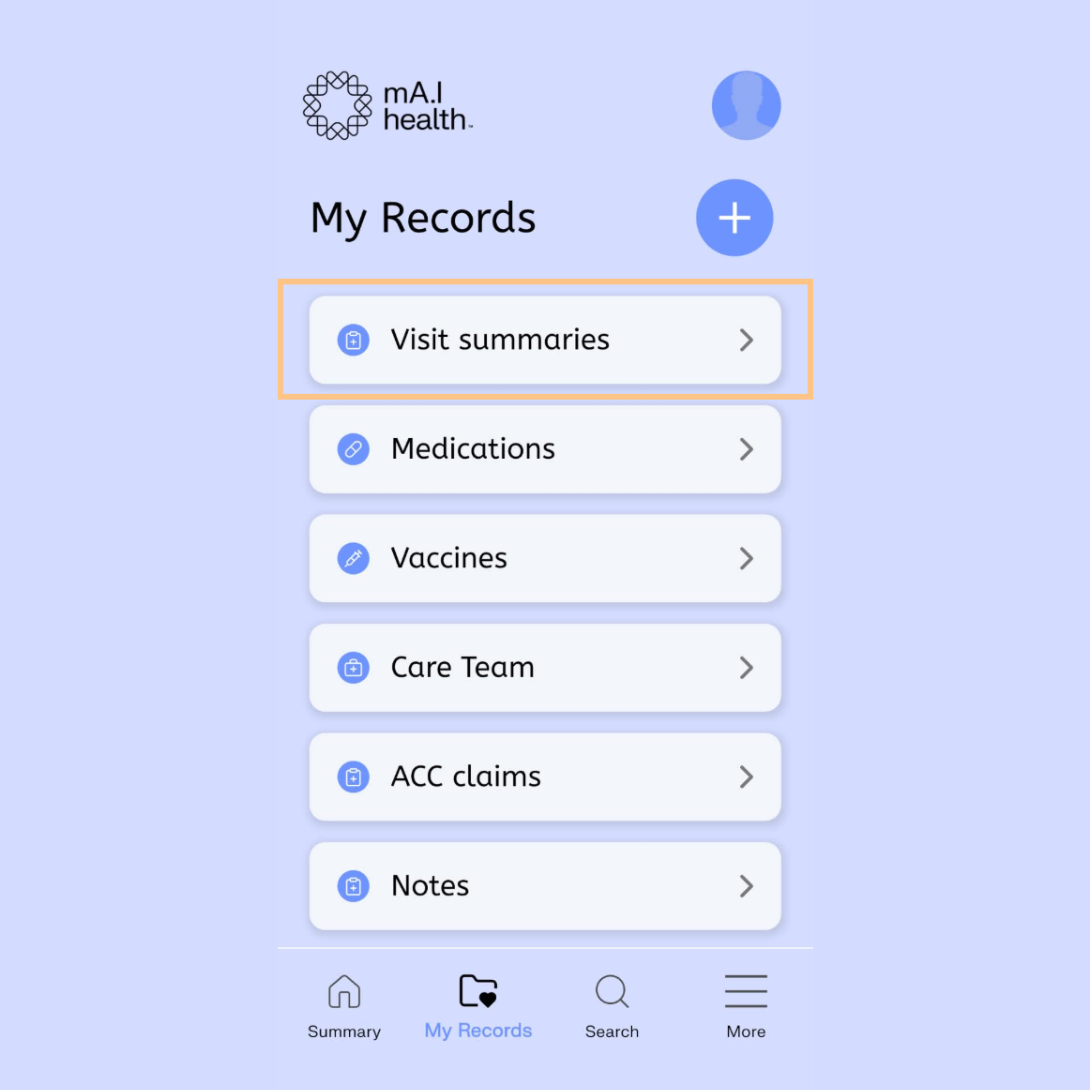
Return to the My Records tab, then select the Visit Summaries button to begin setting up the folders you will use to store your medical records.
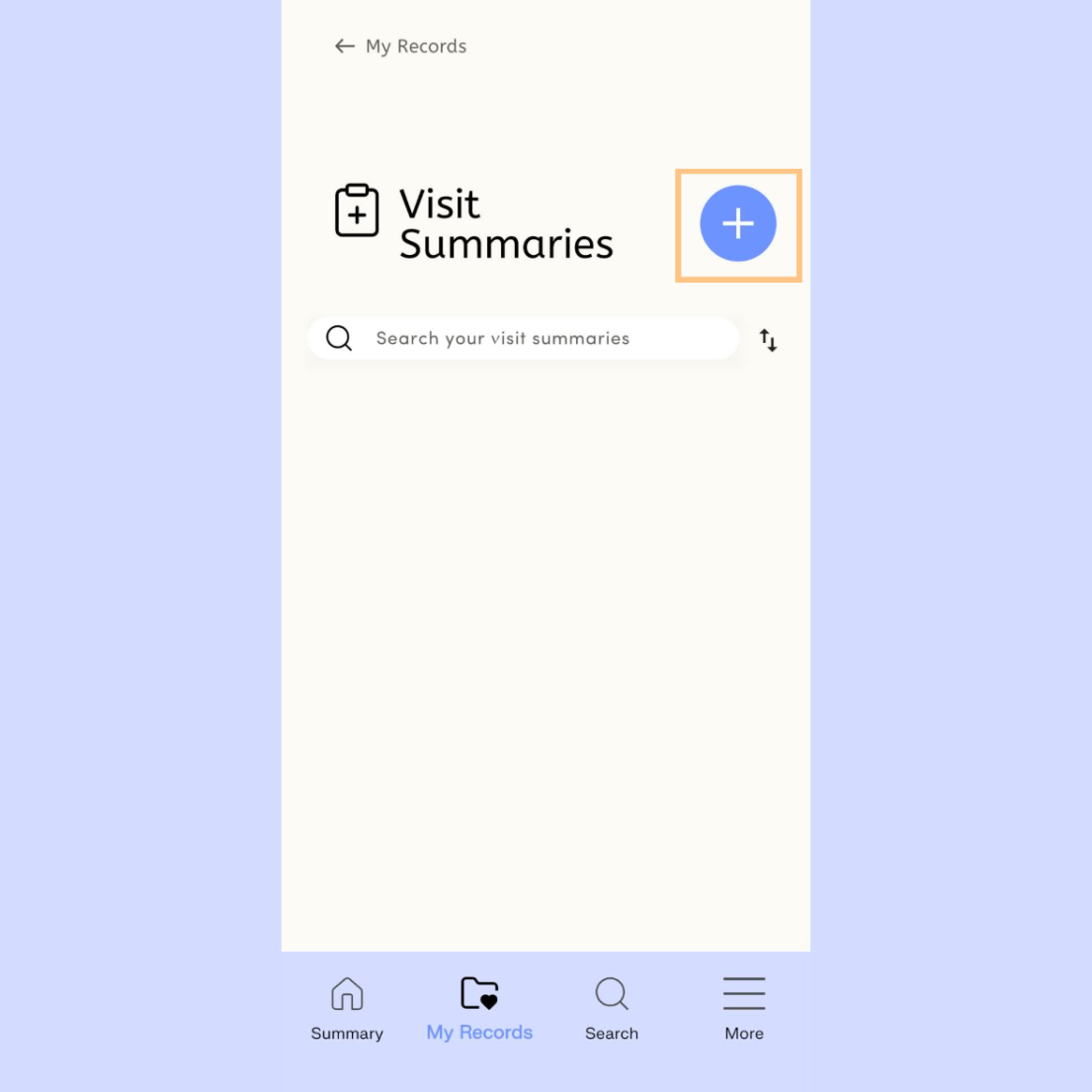
Select the Plus icon to create a new Visit Summaries folder.
You can organise this how you wish. Common set ups we recommend include creating folders for each specialty EP or GP, cardiologist, hospital, bloods etc. or creating folders by year and date.
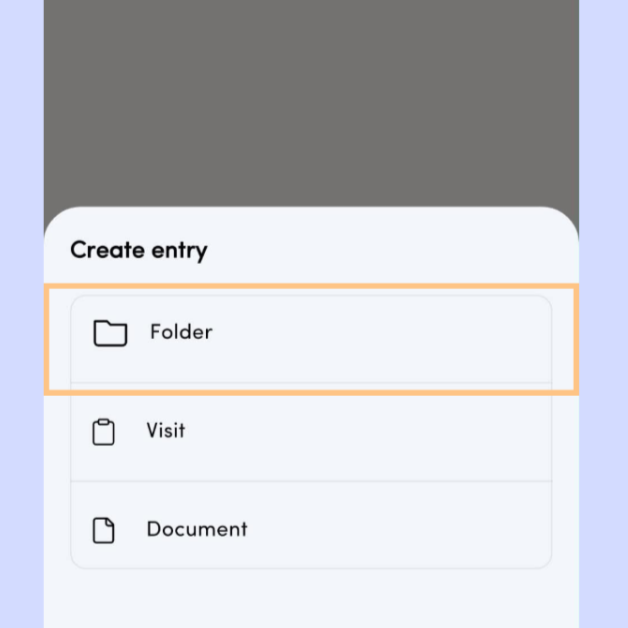
Select the Folder button.
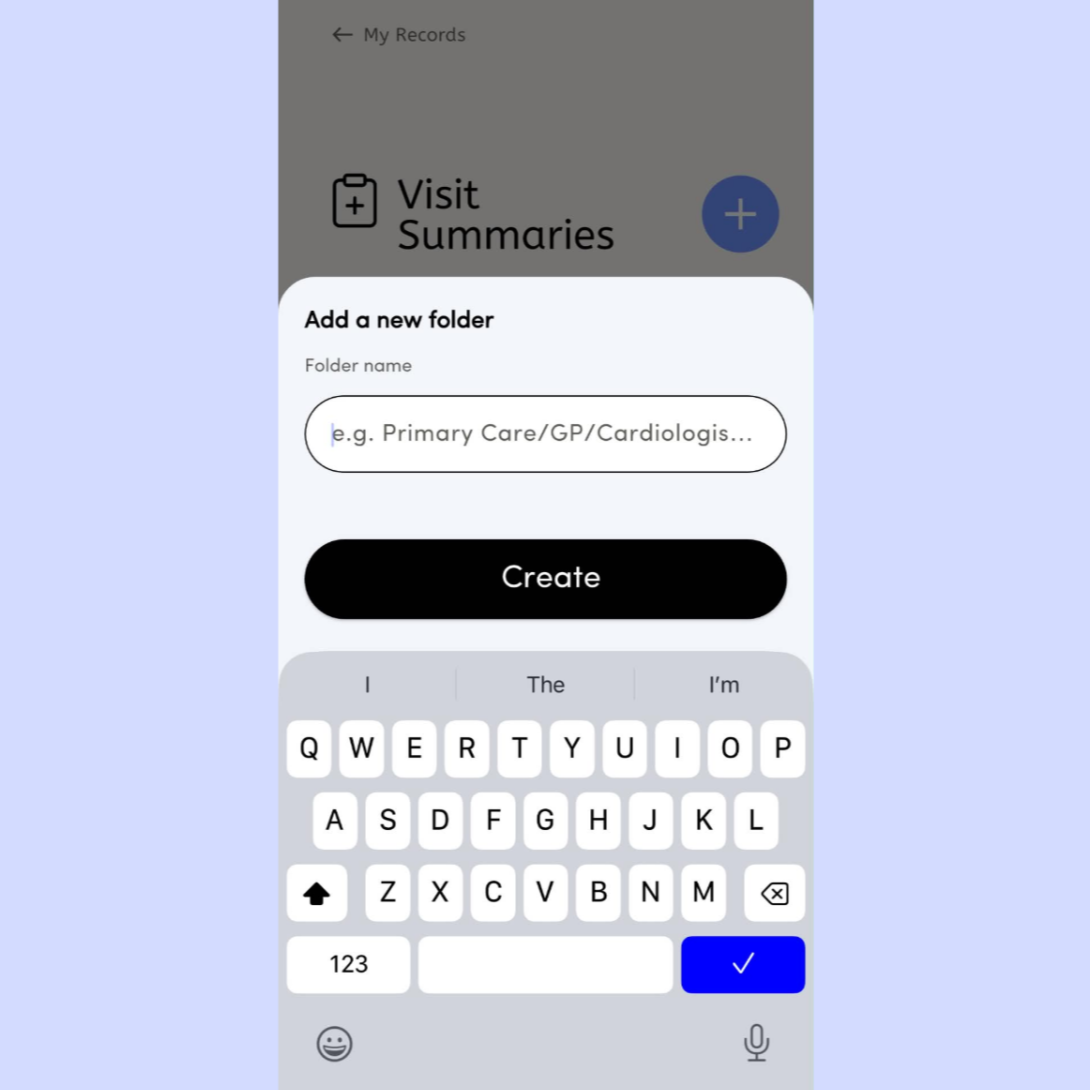
Enter the appropriate name for the folder in the text field, then click the Create button to save the folder.
Repeat these steps as necessary for each new folder you wish to create.