
Setting up your vaccines
Learn how to upload and verify your vaccines in your mA.I Health™ app.
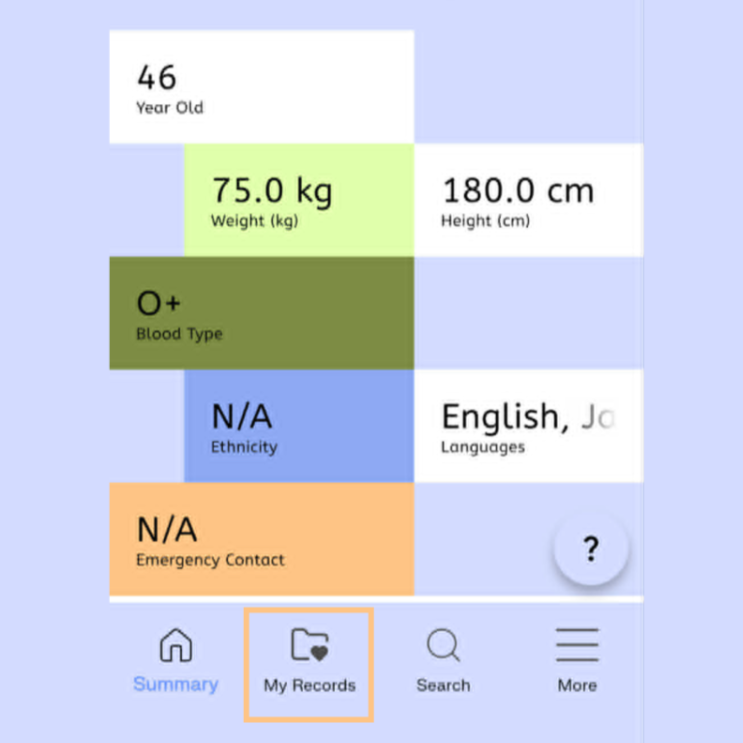
Click the My Records icon at the bottom of your home screen.
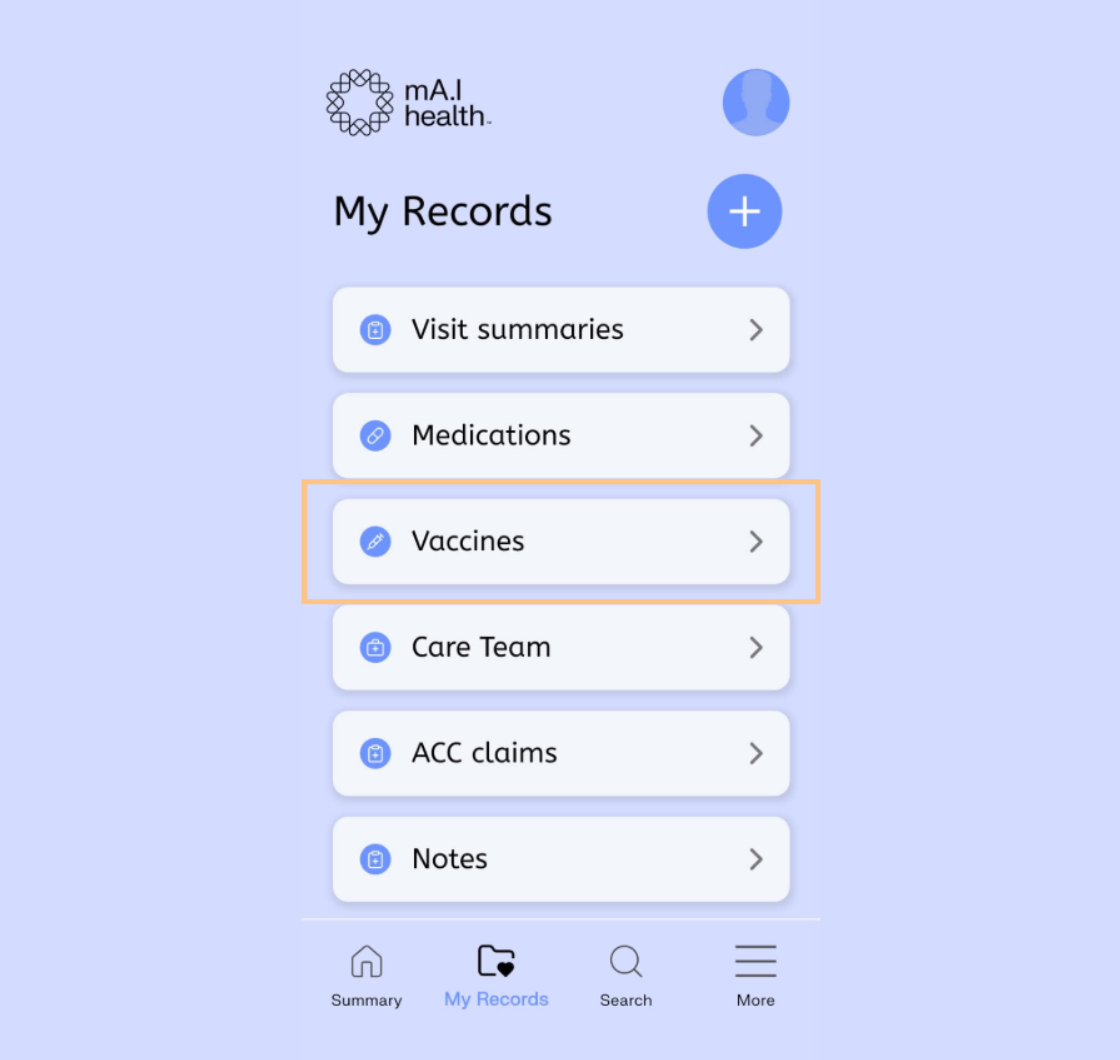
Select the Vaccines button.
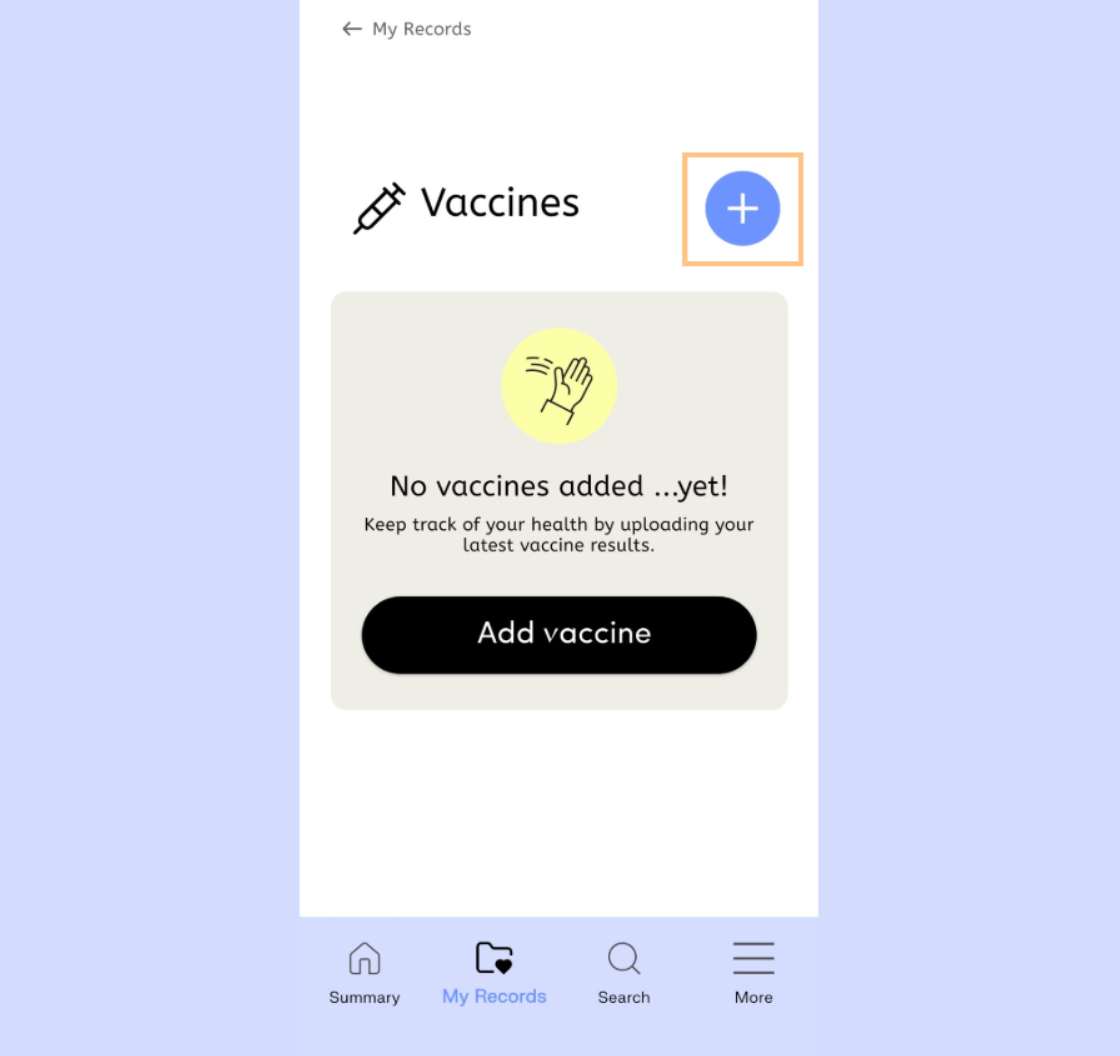
Select the Plus button to start adding a new vaccine record.
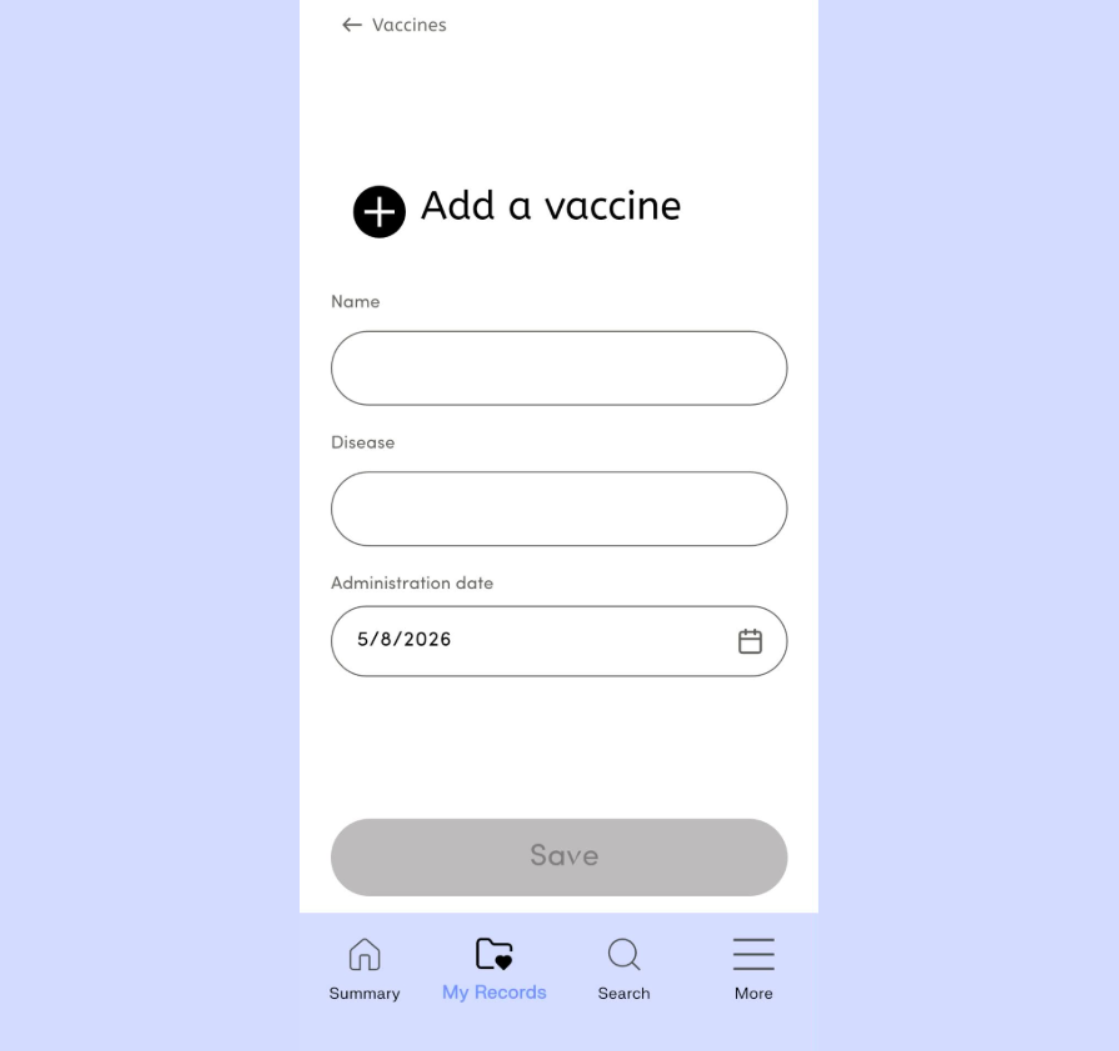
Work through the form completing the requested vaccine details.
Select the Save button at the bottom of the form when finished.
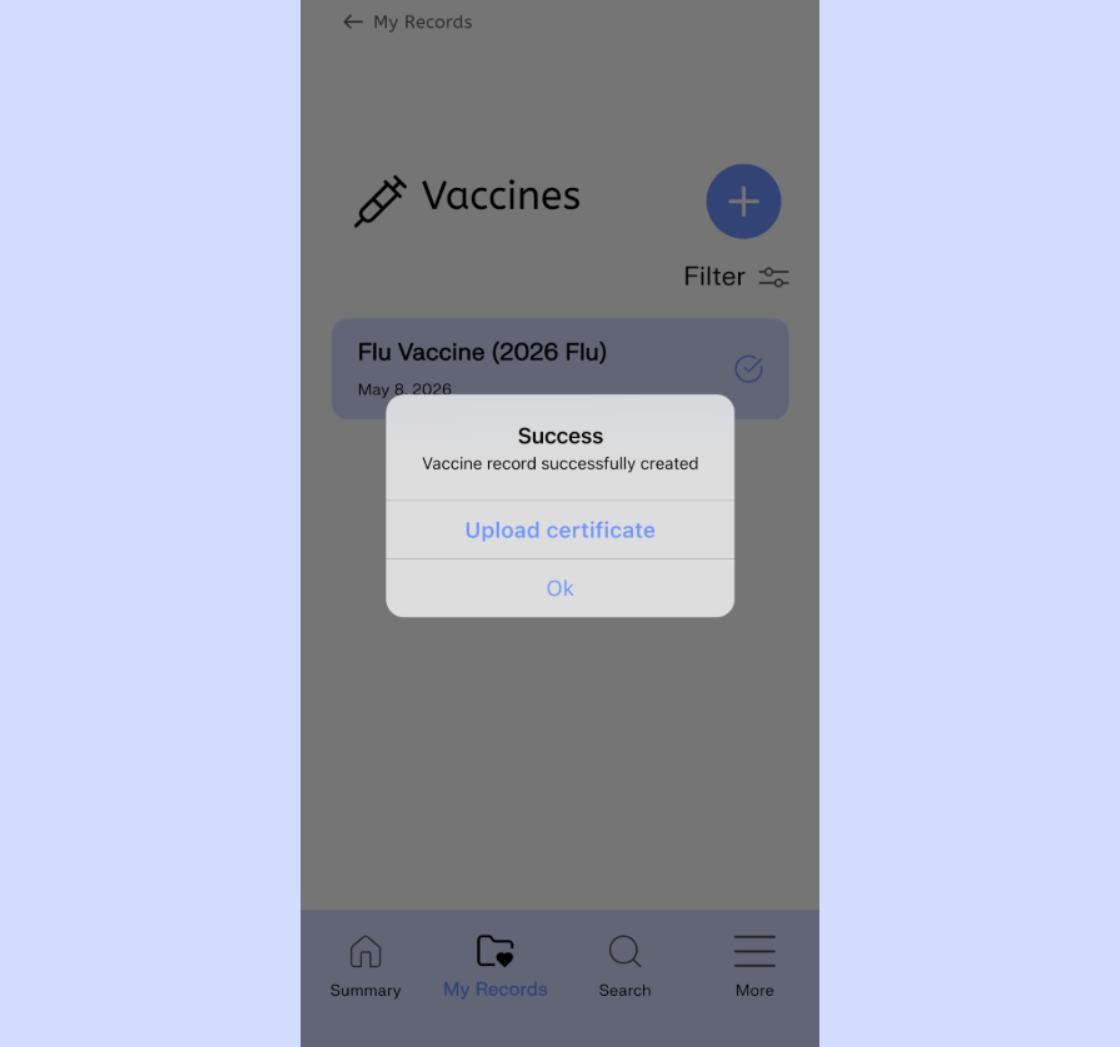
The app will confirm when you have successfully created a new vaccine record and then prompt you to verify it if you have a digital or hard copy of the vaccine certificate saved in your files. If you don’t, just select okay. You can verify at a later date.
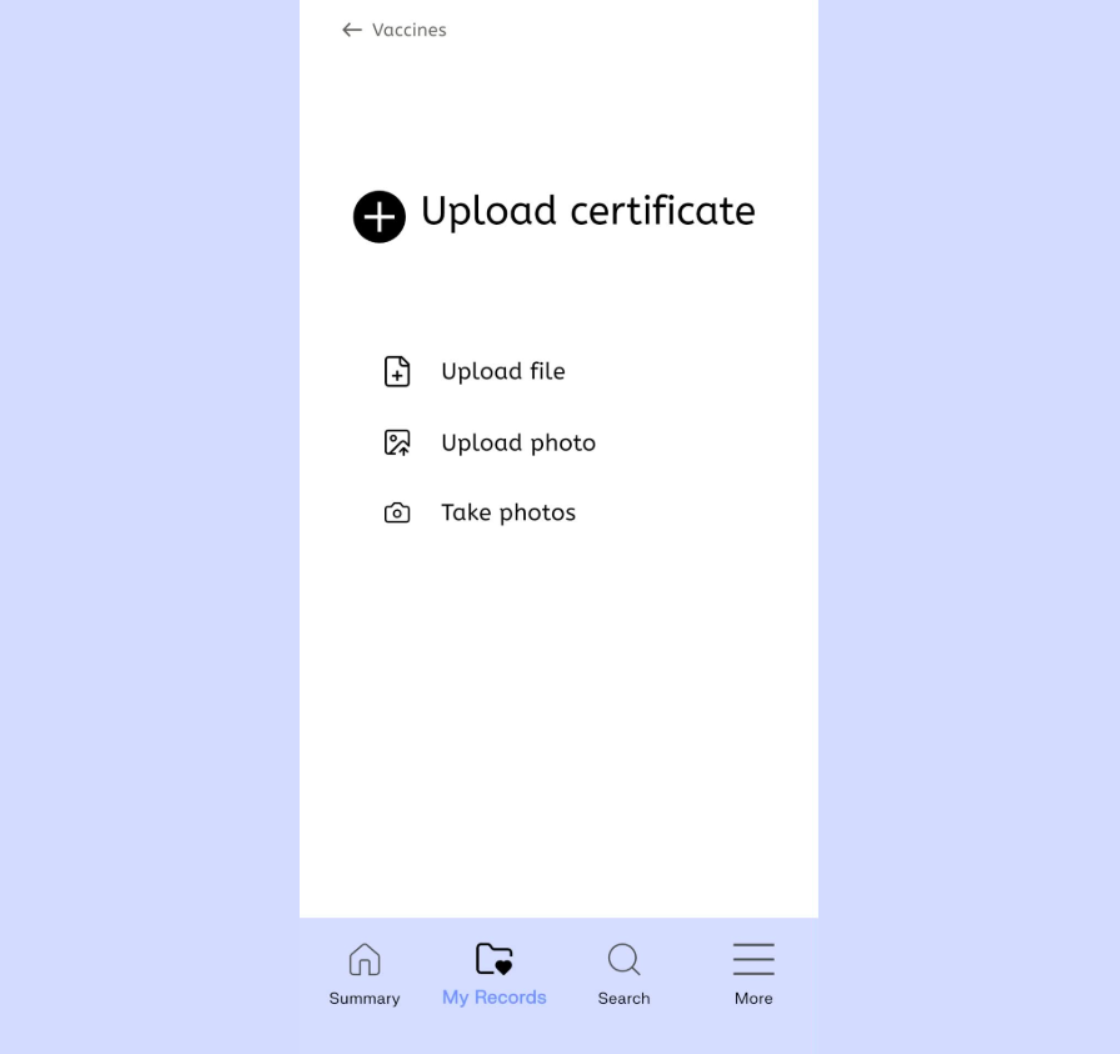
If you are able to upload a vaccine certificate, you can do so by uploading either a file (like a DOC or PDF), a photo from your gallery, or by taking a photo with your phone camera. Select the appropriate option and follow the onscreen prompts to upload and save your certificate.